Word-by-word highlight and animations
A good Quran reel lets the viewer follow the recitation word by word. Tarteel Video does this with a gold highlight in time with the reciter, gentle animations and short phrases for long ayahs. All of it lives in the editor's Text tab.
Tutorials · · 3 min read
Where to find these settings
Open your project in the editor and tap the Text tab under the timeline. After the Quran font row you will find Highlight each word, Short phrases and an Animation section. Every change shows in the preview right away, and the export looks exactly like the preview.
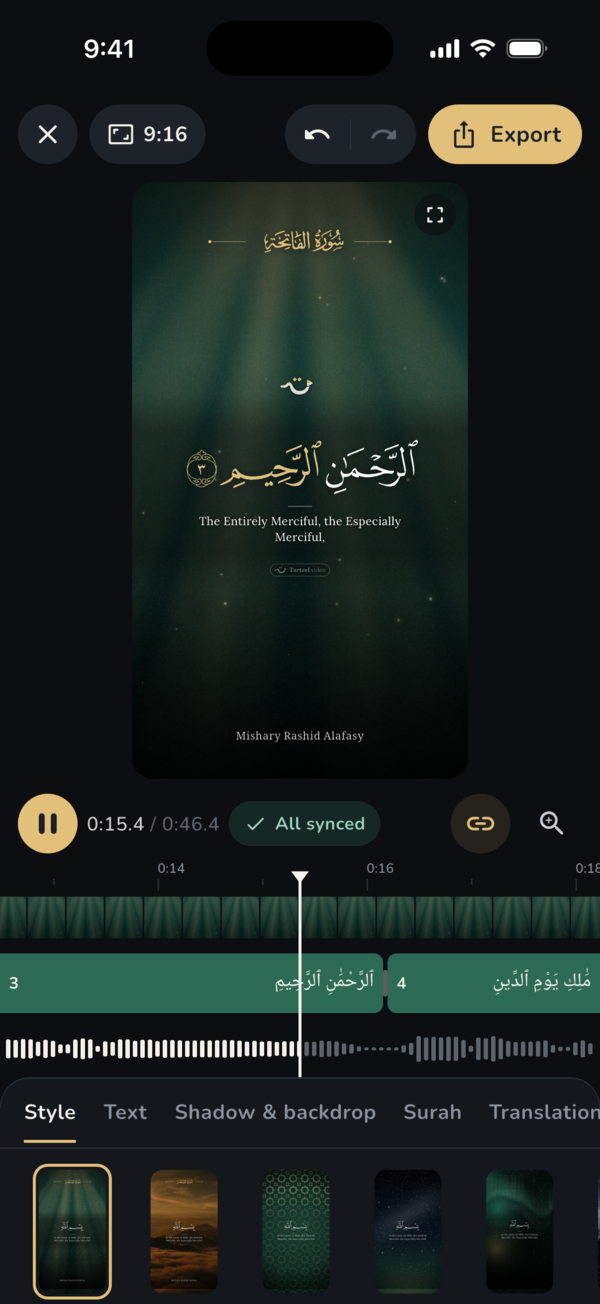
The gold highlight
Turn on Highlight each word and the word being recited turns gold, in time with the reciter. It works because the app times every word, either by listening to your recitation on the device or from the word timings that come with Famous reciters.
When the highlight is on, Highlight style offers two ways to light the word. Classic fades the gold in and out on each word. Ink fill fills the word with gold and leaves a soft trail behind it.
Animation styles
The Animation section starts with a row of tiles, one for each way an ayah can enter the screen. Tap a tile and it plays once, so you can see it before you decide:
- Fade: the ayah softly appears and disappears.
- Rise: the ayah drifts up into place.
- Zoom: the ayah grows gently into view.
- Slide: the ayah slides in from the side.
- Soft blur: the ayah comes into focus.
- Word by word: each word appears as it is recited. This needs word timing; otherwise the text fades in whole.
- Cascade: the words appear one after another in a quick wave.
- Cut: no animation, the ayah simply changes.
Pace and background transition
Speed sets the pace of every animation: Calm is slower, Normal is the default, and Lively is quicker. Calm suits reflective recitations and long ayahs; Lively suits short reels where every second counts.
Background sets how a background clip joins its next loop: Crossfade, Cut, or To black, which dips briefly to black.
Short phrases for long ayahs
Some ayahs are too long to read comfortably on a phone screen at once. Turn on Short phrases and the app shows a few words at a time, timed to the recitation, so the viewer reads along at the reciter's pace instead of facing a block of text.
Short phrases works together with the gold highlight and the animation styles. Screens without word timing stay whole.
Making it the default
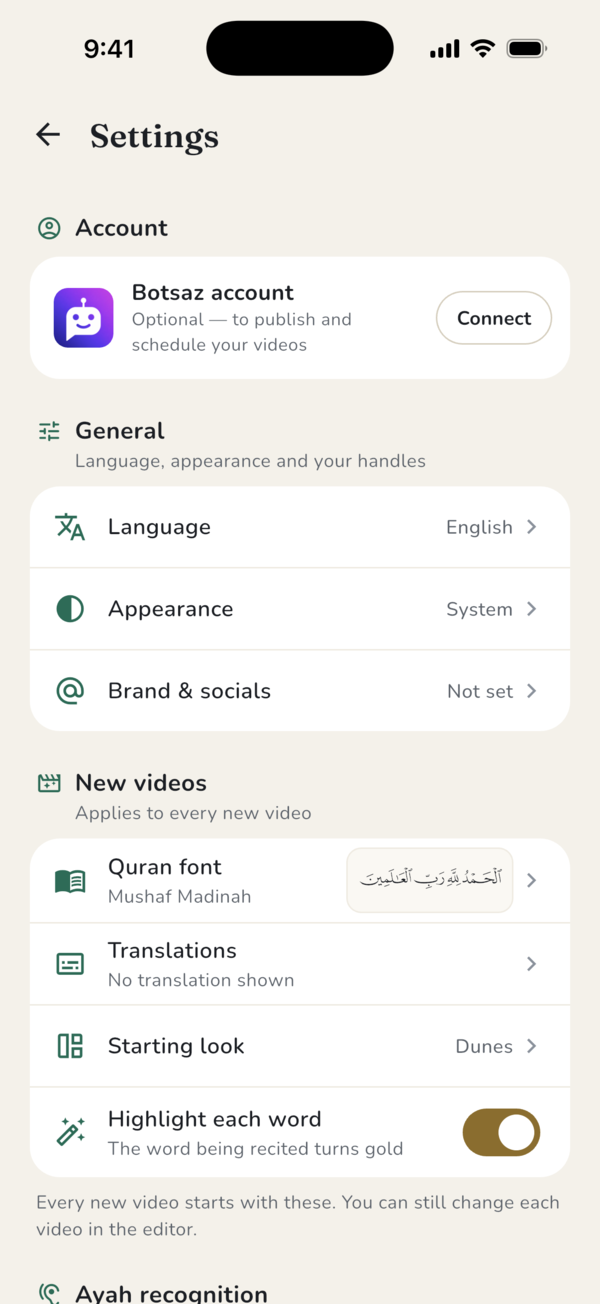
If you want every new video to start with the highlight on, open Settings and, under New videos, turn on Highlight each word. To reuse a whole combination of animation, pace and look, tap Styles in the editor and save this style, then use it on later videos.
On very long videos or less powerful phones, the app may simplify the highlight or the animation so the export can finish. It tells you when this happens, and trimming the recitation keeps them. Our guide to export quality and trimming explains more.
Frequently asked questions
Why doesn't the word-by-word animation work on my video?
It needs word timing. Where a screen has none, the text fades in whole instead.
Can I change the highlight colour?
The highlight is gold. You can choose between the Classic and Ink fill highlight styles.
Which animation is best for reels?
There is no single answer. Fade or Rise at a Calm pace suits most recitations; Word by word helps viewers follow along.
Does the export match the preview?
Yes. The highlight, phrases and animations are drawn the same way in the preview and the export.