Export quality and trimming
Before you share a Quran video, two choices shape the result: how sharp it is, and where it starts and ends. This guide explains the four export qualities in Tarteel Video and how to trim a recitation on the timeline.
Tutorials · · 4 min read
Trim the start and the end first
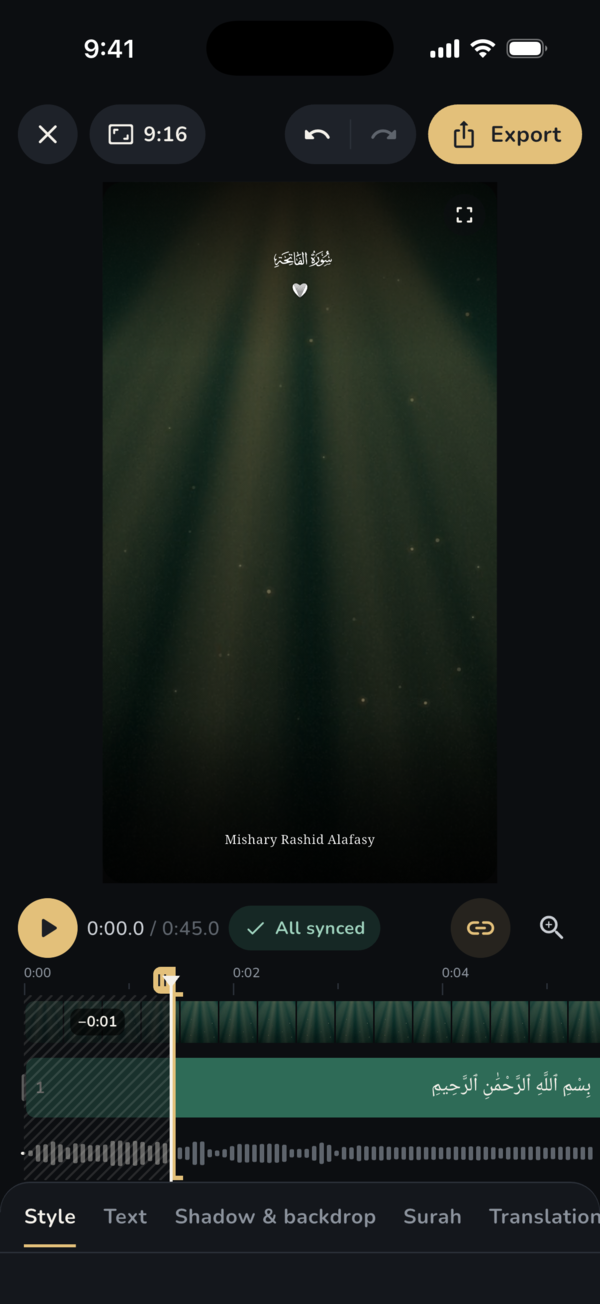
Trimming decides what the viewer sees and hears, so do it before you export. On the timeline, each end of the video has a trim handle with a small gold grip on the ruler. Drag the start handle to the right, or the end handle to the left, to cut the parts you don't need, such as silence before the recitation or talk after it.
The handles snap to useful places: the start of a word, a silence, and the edge of an ayah. That makes it easy to cut cleanly without splitting a word in half. Playback stays inside the trimmed part, so you can check the result right away.
Undoing a trim
Trimming never deletes anything from your recording. To bring back the full length, long-press a trim handle without moving it and choose Reset trim. Dragging a handle all the way back to its end restores that side too. You can also use Undo in the editor.
The Video quality sheet
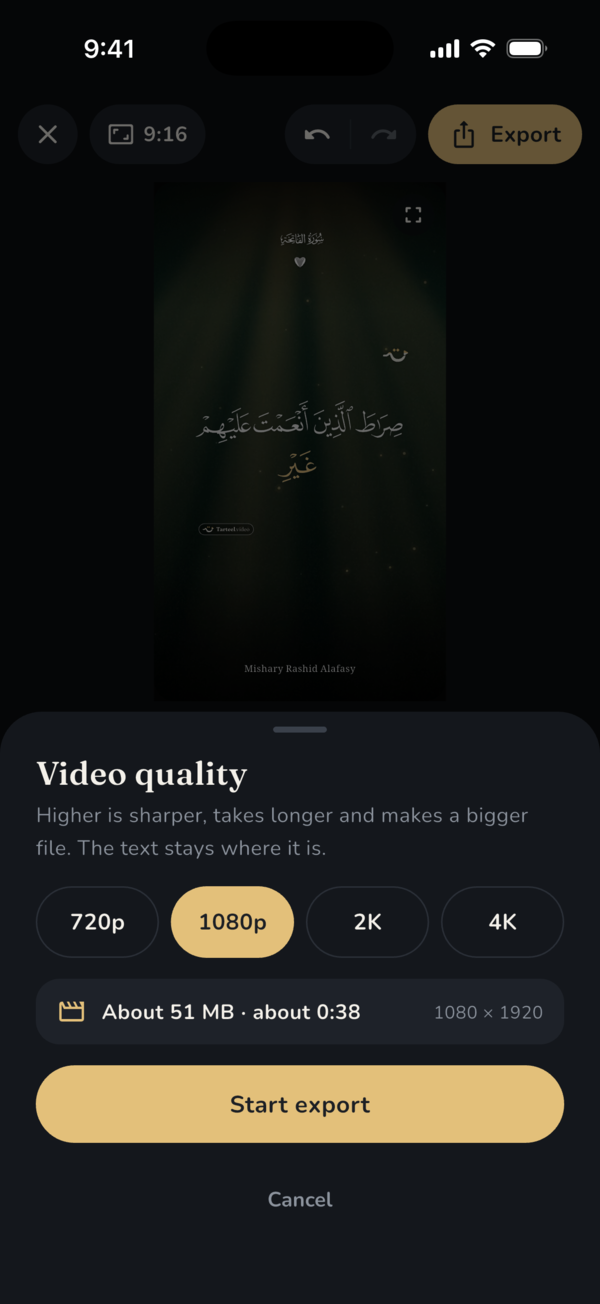
Tap Export in the editor to open Video quality. It offers four choices: 720p, 1080p, 2K and 4K. Under them, the sheet shows about how large the file will be and about how long the export will take on your phone, along with the exact frame size. Pick one and tap Start export.
Higher is sharper, takes longer and makes a bigger file. The layout never changes with the quality: the text stays in exactly the same place, only sharper.
Which quality to choose
If your background is a lower-resolution video, a higher quality sharpens the Quran text but not the background itself. The app tells you when that is the case.
- 720p: the smallest file and the quickest export. It is the safe choice on older or less powerful phones, and fine for sending in chats and status updates.
- 1080p: the usual choice for reels, shorts and stories. It is what a new project uses when nothing else was chosen, and it balances sharpness with size.
- 2K: noticeably sharper text, with a larger file and a longer export. Best on powerful phones.
- 4K: the sharpest text and the largest file. Use it when you want a master copy to keep or edit further, and only on a phone that can handle it.
When the phone can't manage a quality
Tarteel Video checks your phone before it starts. A quality that is too heavy for the phone's memory, or that the phone can't encode, is shown as unavailable with the reason. For a long or demanding video it may warn you first, for example that the export will take a while, and suggest a lighter choice.
If an export does stop, the app tries again with a lower quality or a lighter version, and tells you what it changed. Keeping the app open and the phone charging helps long exports. Trimming the recitation is often the best fix of all.
While it exports, and after
You can keep editing, or leave the app: the video keeps rendering, and a notification tells you when it is ready. Then tap Save to gallery, Share, or Publish with Botsaz. A finished video that is not saved yet is kept in Your projects for a few days, so save it to keep it. To make another copy at a different sharpness, choose Export at another quality.
Frequently asked questions
What quality should I use for reels and shorts?
1080p is the usual choice. It looks sharp on phones and keeps the file a manageable size.
Why is 4K greyed out on my phone?
Some phones don't have the memory or the video encoder for 4K. The sheet shows the reason under the qualities.
Does trimming delete my recording?
No. Trimming only sets what the video uses. Long-press a trim handle and choose Reset trim to bring back the full length.
Can I leave the app while it exports?
Yes. The video keeps rendering in the background, and the app tells you when it is ready.