How to import a recitation
Every Tarteel Video project starts with a recitation. Here are the three ways to bring one in, what the app does next, and how to get the best result from your own recordings.
Tutorials · · 4 min read
Way one: a file from your phone
On the home screen, under My recitation, tap Video to pick a recitation you filmed, for example in the masjid. Its picture stays as the background of your Quran video.
For an audio file, such as a voice note or an MP3, tap Studio, then Add a file. When the recording is ready, tap Use in video, and you pick a calm background in the editor. You can also share a video or audio file to Tarteel Video from another app: choose Make a video, or Open in Studio to work on the audio first.
Way two: a YouTube or file link
Tap File link on the home screen and tap Paste. You can paste a YouTube video link, or a direct link to a video or audio file such as an .mp4, .m4a or .mp3 file. The app reads your clipboard only when you tap Paste.
Tap Continue to check the link. You then choose Use the video, to keep its picture and voice, or Voice only, to choose your own background later. For a YouTube video you can also trim it first, and only the part you keep is downloaded. Tap Download and start, and the app finds every ayah once the download is done.
- Links from Instagram, TikTok and Facebook can't be imported yet. Save the video to your phone, then share it to Tarteel Video.
- Live streams can't be imported. Try again after the stream has ended.
- Use recitations you own or have permission to share, and credit the reciter when you post.
Way three: famous reciters
Tap Famous reciters to open the library. Choose a Reciter, a Surah, and the range with From ayah and To ayah, then tap Create video. If you are not sure where to start, Surprise me picks for you.
These recitations are timed word by word in advance, so the editor opens with every ayah already in place and there is nothing to analyse. The audio downloads when you make a video with a reciter, so the library needs an internet connection.
What happens next: finding every ayah
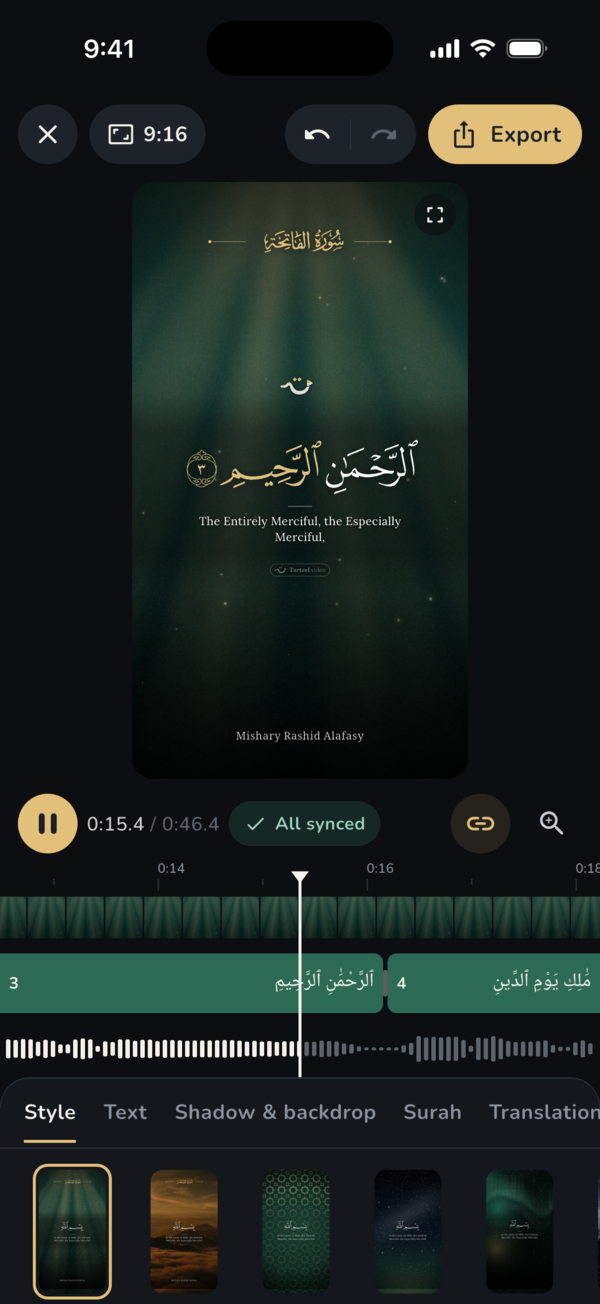
With your own file or a link, the app listens to the recitation on your phone. You will see the steps as it works: Listening to the recitation, Detecting the surah, then Timing every ayah. The editor opens in a moment, and you can already play the video and choose a look while recognition continues.
When it is done, every ayah has its own segment on the timeline. Any ayah that was hard to hear is marked to review, so you can check its timing. Nothing is uploaded: recognition runs entirely on the device.
Tips for clean audio
The app finds ayahs by listening, so the clearer the recitation, the better the timing. A few simple habits help:
- Record close to the reciter, in a quiet room, with as little echo as you can.
- Avoid music, crowd noise or talking over the recitation.
- For a long recording, trim it to the part you need before importing, or choose only a part when the app offers it.
- If the file has no sound, or the device can't read it, save it as MP3 or M4A first.
- Recorded a prayer? In the Voice tab, Clean up the recording can take out long pauses, repeated Al-Fatihah and prayer phrases. Nothing is deleted from your recording, and you can undo it any time.
If an ayah is in the wrong place
If you want the app to listen again from scratch, tap the status chip in the editor (it reads All synced, or long-press it while ayahs are marked to review) and choose Re-analyze recitation. Your look, translations, trim and voice settings stay as they are. For hard recordings, Settings also offers stronger recognition levels under Ayah recognition, which are more accurate but slower and need a one-time download.
Frequently asked questions
Can I use a YouTube link?
Yes. Paste a YouTube video link in File link. You can trim it before downloading, and only the part you keep is downloaded.
Why can't I paste an Instagram or TikTok link?
Those links can't be imported yet. Save the video to your phone, then share it to Tarteel Video or pick it with the Video button.
Do I need internet to import my own file?
No. Importing a file from your phone and finding the ayahs both work offline. Links and famous reciters need a connection.
Can I use only the voice of a video?
Yes. Choose Voice only when you import a link or share a file, and pick a background in the editor.